How to download your electricity meter data
Your meter data file is free to download from your distributor's portal. It takes about 5 minutes to set up once, and 30 seconds after that.
Distributor vs. retailer
Victoria has two types of electricity companies. Your retailer sends your bill and sets the plan rates — AGL, Origin, Simply Energy, and so on. Your distributor owns the poles, wires, and meter at your address. They are a different company.
Meter data comes from your distributor — they hold the raw interval readings. Your retailer can also provide it (see below), but their download only covers the time you have been with them.
Not sure who your distributor is? It is printed on your electricity bill, usually near the NMI. You can also check by entering your postcode in Nemity.
Powercor
Portal: myEnergy
What you need:
- Your NMI — a 10 or 11-digit number near the top of your electricity bill
- About 5 minutes to register once — 30 seconds to download after that.
Steps:
- Register with an email address and password.
- Sign in and open My properties. If your address is not listed, choose Add a property → Single property, then enter your NMI.
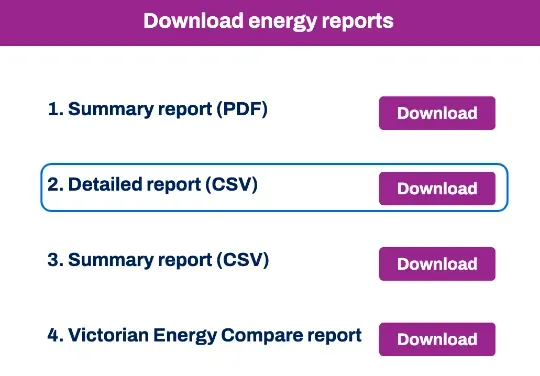
- Go to Energy usage, check the right property is selected, then open Actions → Download reports.
- Choose Detailed report (CSV) for the last 24 months (preferred), or Victorian Energy Compare report for the last 12 months.
- Download the file, then upload it to Nemity.
On a brand-new account your usage can take a day or two to appear, while the portal checks your NMI against your retailer’s records. If it looks empty at first, it usually is not broken — check back.
Jemena
Portal: My Portal
What you need:
- An email address to sign up
- Your NMI, from your electricity bill — first 10 characters only
- Your meter number, also on the bill
- About 5 minutes to register once — 30 seconds to download after that.
Steps:
- Register with an email address and password.
- Enter the code Jemena emails you. It expires after 2 hours.
- Open Properties, then Add a property. Enter your meter number, and the first 10 characters of your NMI — leave the last one off, or it will not match.
- Use Download to export your data, then upload it to Nemity.
United Energy
Portal: myEnergy
What you need:
- Your NMI — a 10 or 11-digit number near the top of your electricity bill
- About 5 minutes to register once — 30 seconds to download after that.
Steps:
- Register with an email address and password.
- Sign in and open My properties. If your address is not listed, choose Add a property → Single property, then enter your NMI.
- Go to Energy usage, check the right property is selected, then open Actions → Download reports.
- Choose Detailed report (CSV) for the last 24 months (preferred), or Victorian Energy Compare report for the last 12 months.
- Download the file, then upload it to Nemity.
On a brand-new account your usage can take a day or two to appear, while the portal checks your NMI against your retailer’s records. If it looks empty at first, it usually is not broken — check back.
CitiPower
Portal: myEnergy
What you need:
- Your NMI — a 10 or 11-digit number near the top of your electricity bill
- About 5 minutes to register once — 30 seconds to download after that.
Steps:
- Register with an email address and password.
- Sign in and open My properties. If your address is not listed, choose Add a property → Single property, then enter your NMI.
- Go to Energy usage, check the right property is selected, then open Actions → Download reports.
- Choose Detailed report (CSV) for the last 24 months (preferred), or Victorian Energy Compare report for the last 12 months.
- Download the file, then upload it to Nemity.
CitiPower uses the Powercor site — that is the right place, not a mistake. On a brand-new account your usage can take a day or two to appear, while the portal checks your NMI against your retailer’s records. If it looks empty at first, it usually is not broken — check back.
AusNet
Portal: myHomeEnergy
What you need:
- Your NMI — a 10 or 11-digit number near the top of your electricity bill
- Your meter number, also on the bill
- About 5 minutes to register once — 30 seconds to download after that.
Steps:
- Register with your NMI and meter number, then verify your email address.
- Sign in and find your meter data.
- Choose the detailed download (NEM12), covering up to 2 years.
- Download it, then upload it to Nemity.
You must be the main account holder on the electricity account, and you need a smart meter. On a basic meter, request your data at meterdata.ausnetservices.com.au instead. AusNet also turns away meters with more than two usage channels plus one solar channel.
Already signed in to a retailer?
Some retailers let you download your own meter data from their portal. This is faster if you are already set up — but it only covers the time you have been with that retailer.
Already signed in to AGL?
- Sign in and open your electricity account.
- Find your usage, then look for the option to download it.
- Ask for the longest period offered, and download the CSV.
- Upload it to Nemity — you do not need to convert it.
Ask for a long period if you can. A download covering only summer months can leave us unable to tell what time zone AGL wrote it in, and we would rather say so than guess an hour either way.
Already signed in to Origin?
- Sign in, then go to Usage → View all usage.
- Check the property named at the top left is the one you want.
- Scroll down to Your usage data and choose Download CSV.
- Upload it to Nemity — you do not need to convert it.
The chart at the top of that page may say "Nothing to see yet". The download still works — keep going.
If none of that worked
Your distributor or retailer can provide your meter data on request. It is free and they are required to provide it. Email your distributor — they hold your full history, regardless of which retailer you are with. Your retailer can also provide it, but only for the period you have been with them.
Hi,

I would like a copy of my electricity meter data. Please send it in the detailed format (NEM12) as a CSV file, covering the last 2 years.

NMI: [your NMI]
Supply address: [your address]

Thanks,
[your name]
If you run into trouble, let us know at hello@nemity.com.au. Knowing where people get stuck helps us make this easier.
File formats
Nemity reads .csv, .dat, and .txt files. Specifically:
- NEM12 interval data from all five Victorian distributors
- AGL My Account usage export (CSV)
- Origin usage export (CSV)
- Jemena My Portal export
It reads some other formats too. If you are not sure about yours, upload it — Nemity reads the file itself and will tell you what it found.
Your meter data is read in your browser and never leaves your device.